1. Log in to your Canvas and navigate to your course.
2. Click the Verity LTI link within your course.
Note: If you cannot find the Verity link, please reach out to your instructor for assistance.
3. Hover to the left-side navigation bar and click User Setup > Desktop Lockdown App.
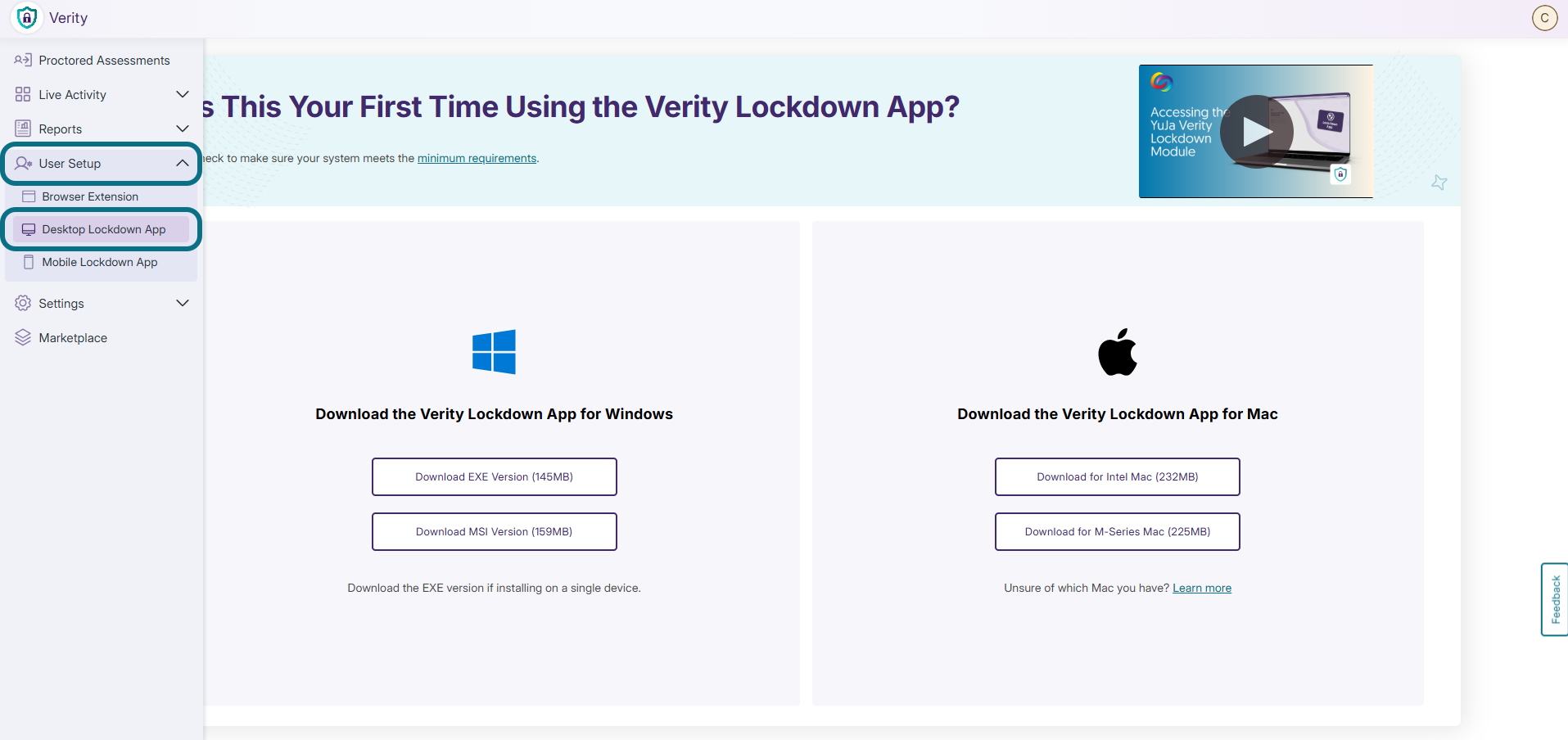
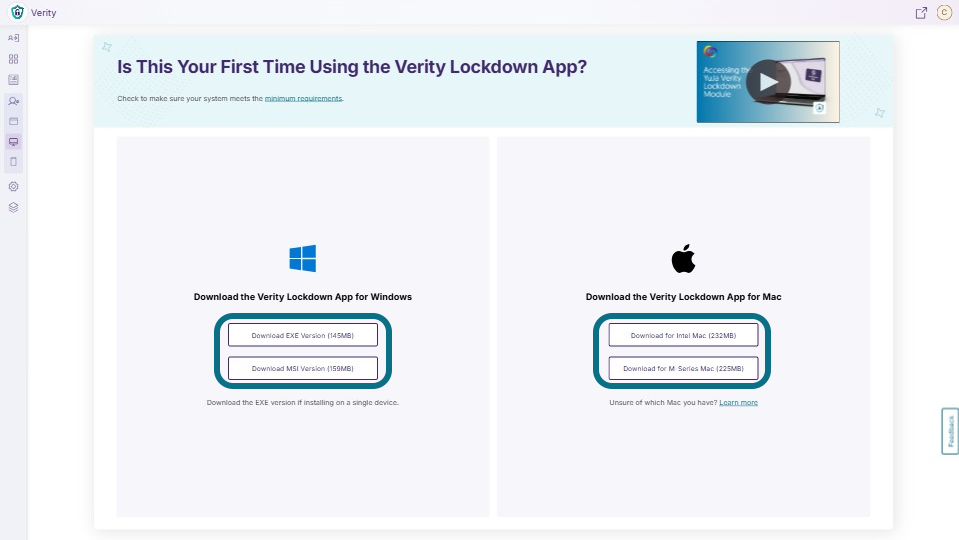
4. Download the Verity Lockdown App based on the operating system of your device:
- Windows: Click Download EXE Version (145MB) if you're installing on a single device, or click Download MSI Version (159MB) if you want to install the Lockdown App on multiple devices simultaneously.
- Mac: Depending on your Mac device, click Download for Intel Mac (232MB) or Download for M-Series Mac (225MB) to download the Lockdown App. Learn more about which type of Mac our device belongs to.
5. Once the download is complete, click the Verity Lockdown App to install it on your device.
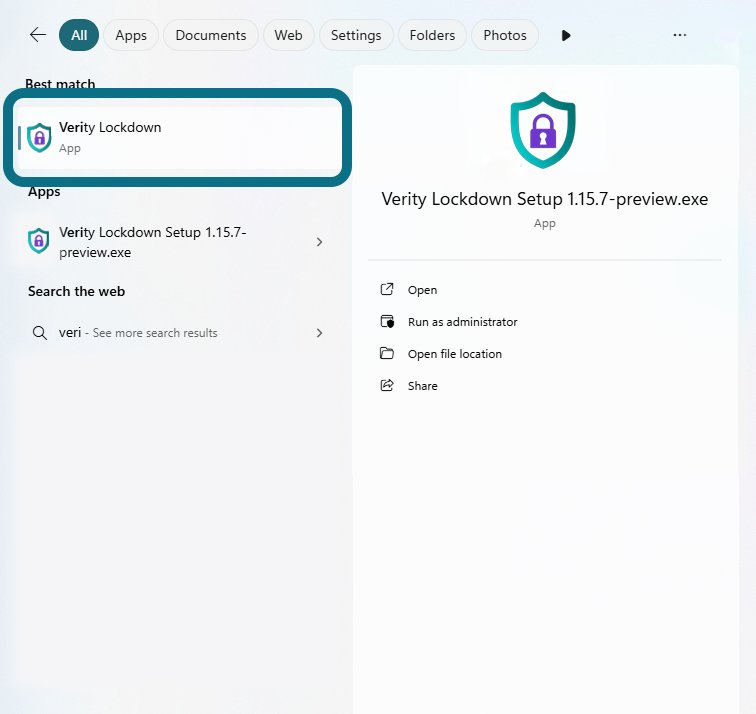
6. To start your proctored assessment, open the Verity Lockdown App, then use the address bar to go to the Verity LTI link in your Canvas to access your assignment.
