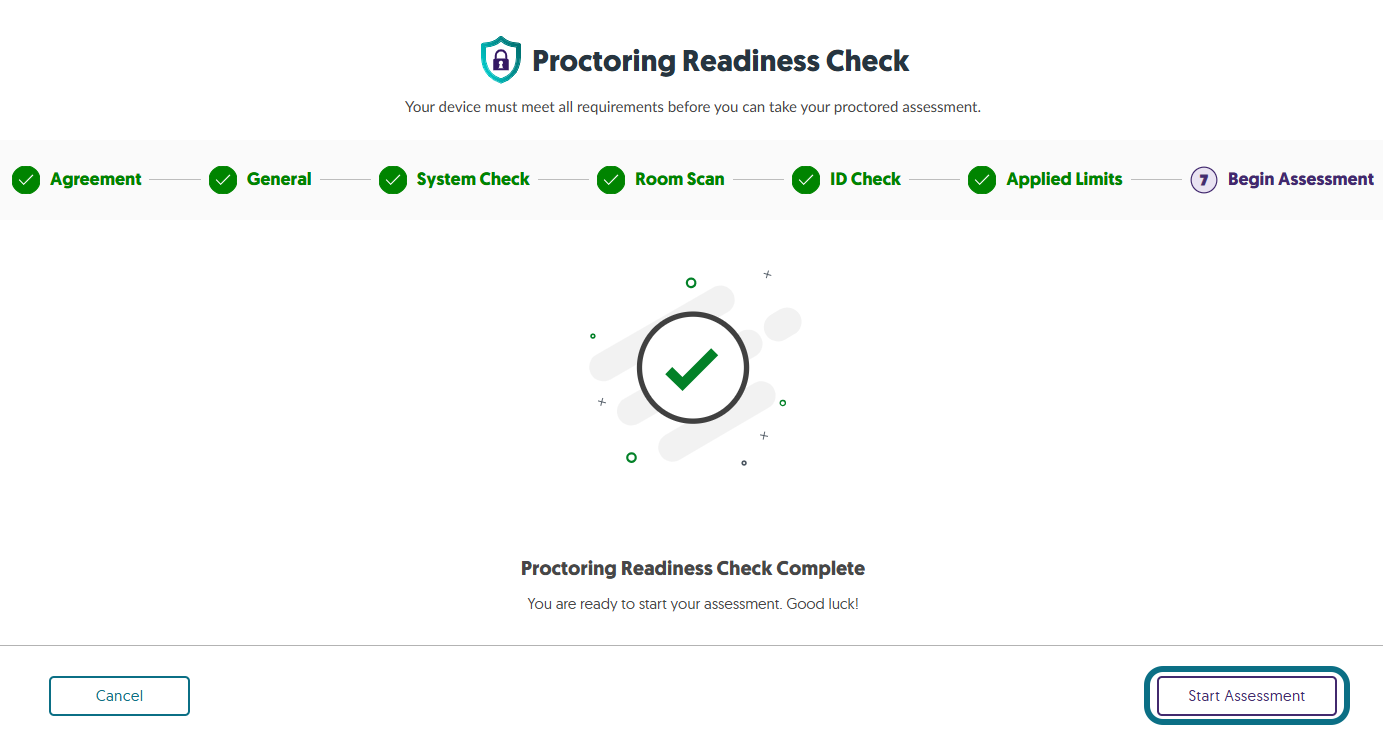
1. Launch the Verity Lockdown on your device.
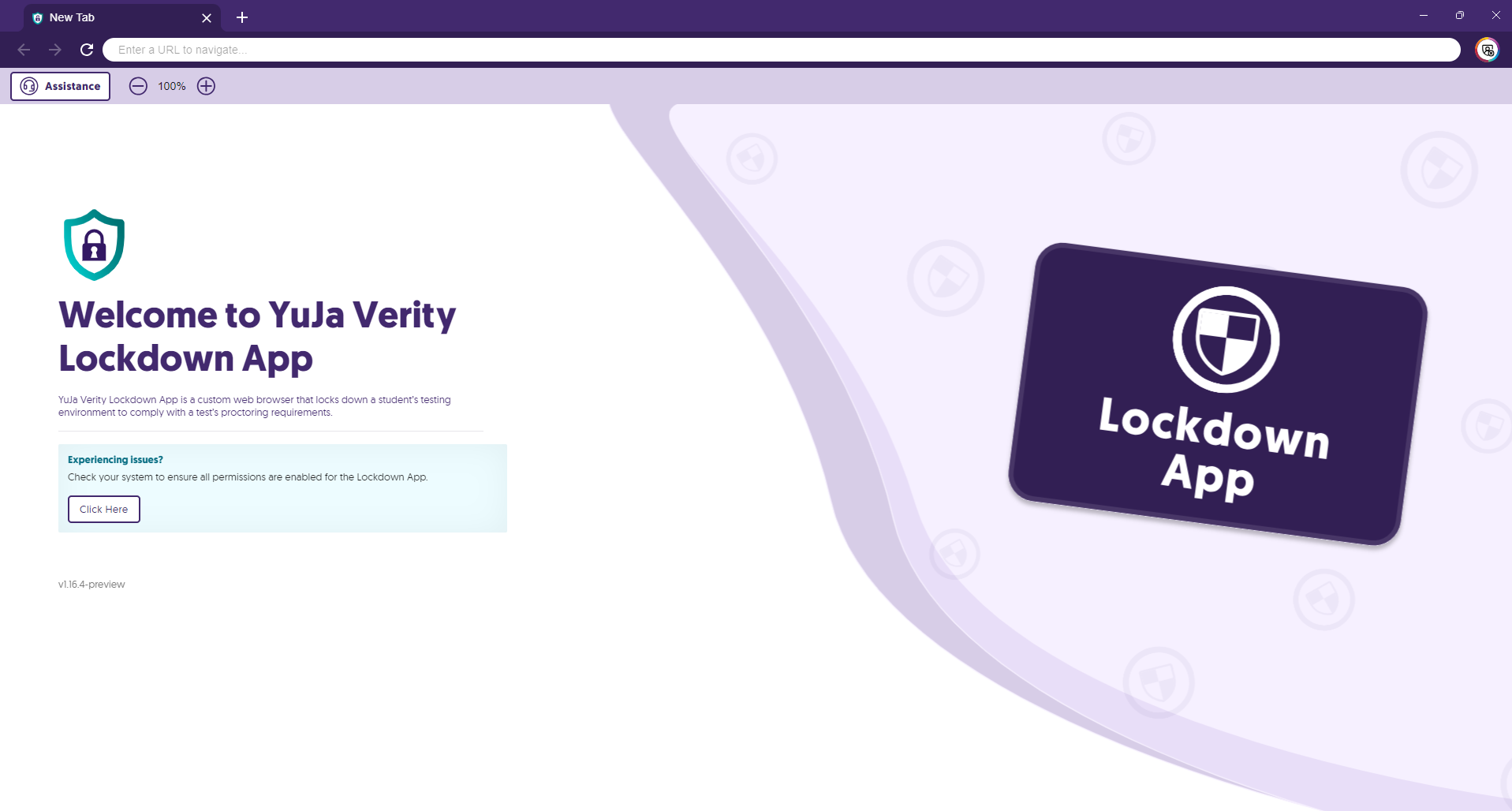
2. Log in to your Canvas through a supported browser, and click the Verity link located within your course.
3. Read over the Privacy and Academic Integrity Agreement, then check I understand the information provided above.
4. Click Next
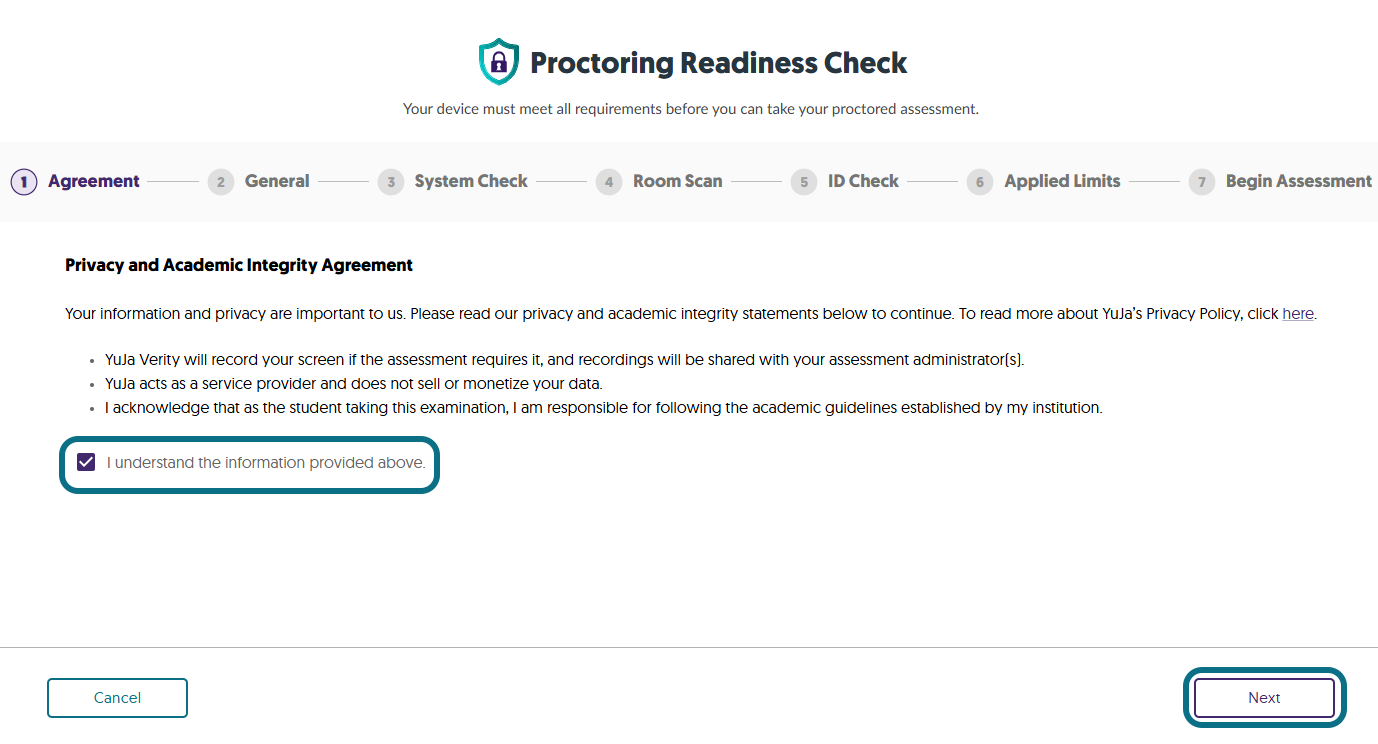
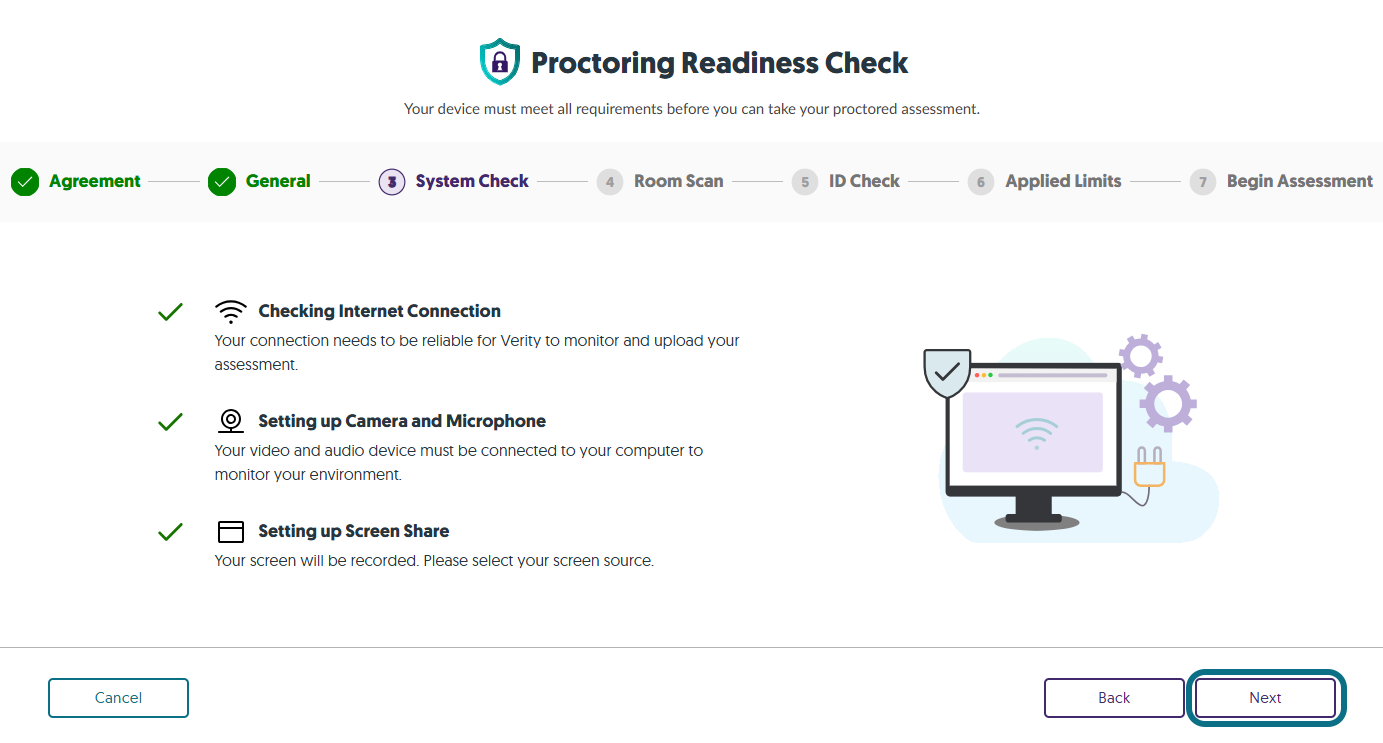
5. Certain restrictions will be applied to your proctored assessment. Resolve any outstanding requirements and click Next.
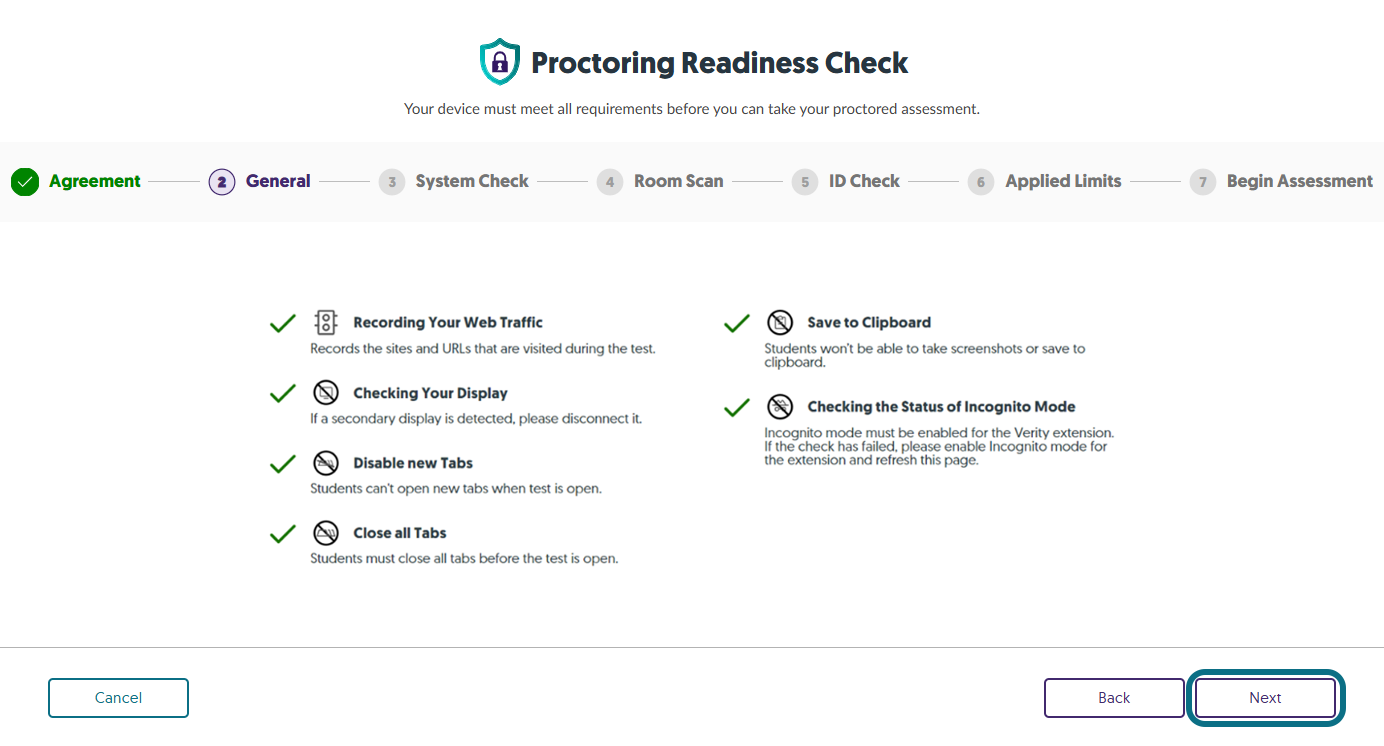
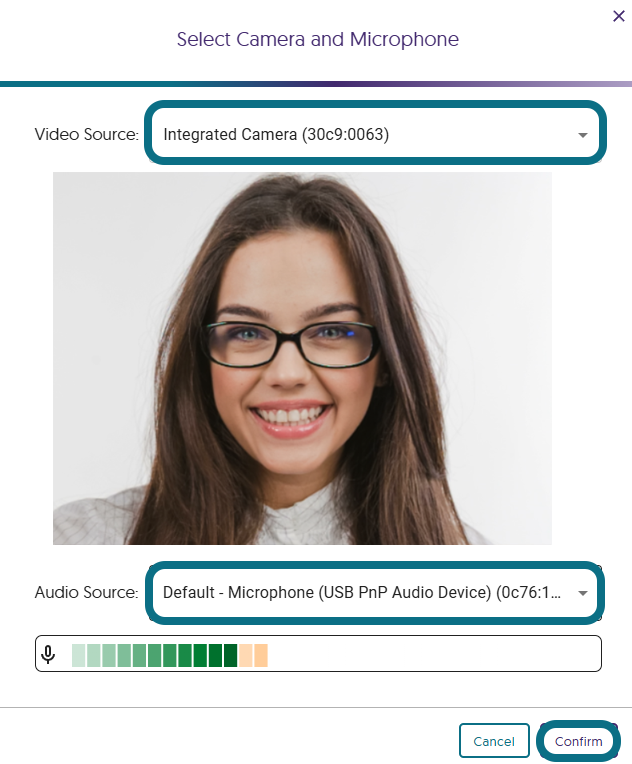
6. During the System Check, you might be required to set up your camera and microphone. If required, select your Video Source and Audio Source from the drop-down menus, then click Confirm.
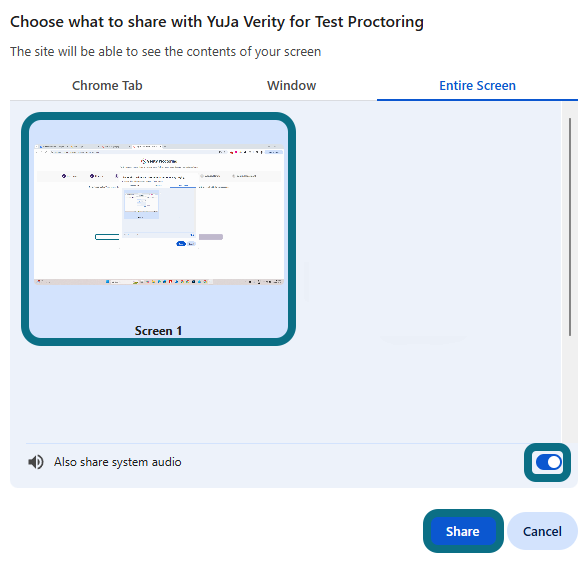
7. If screen sharing is required, select the screen on which you will be taking your assessment.
- Toggle Also share system audio.
- Click Share.
8. If Room Scan is required in your checks, click Room Scan.
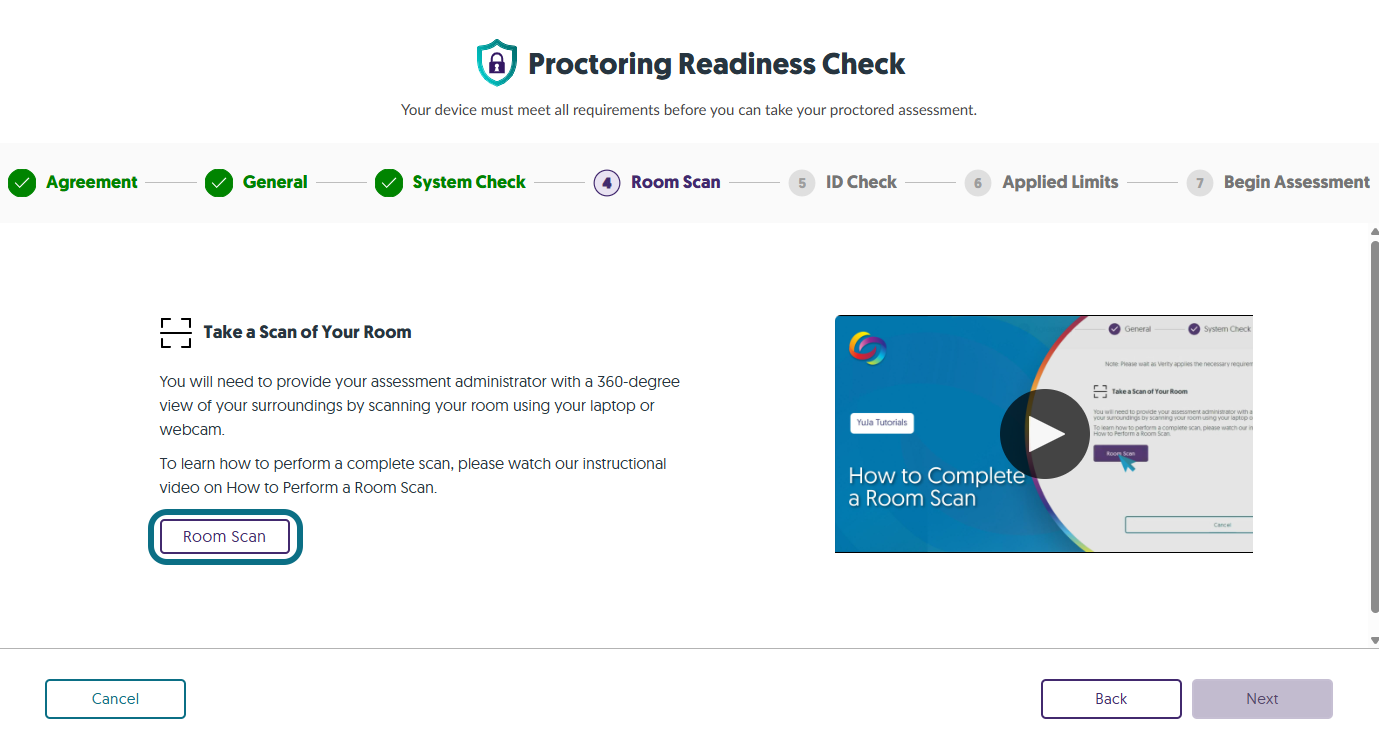
- Click Start Scan in the Room Scan window.
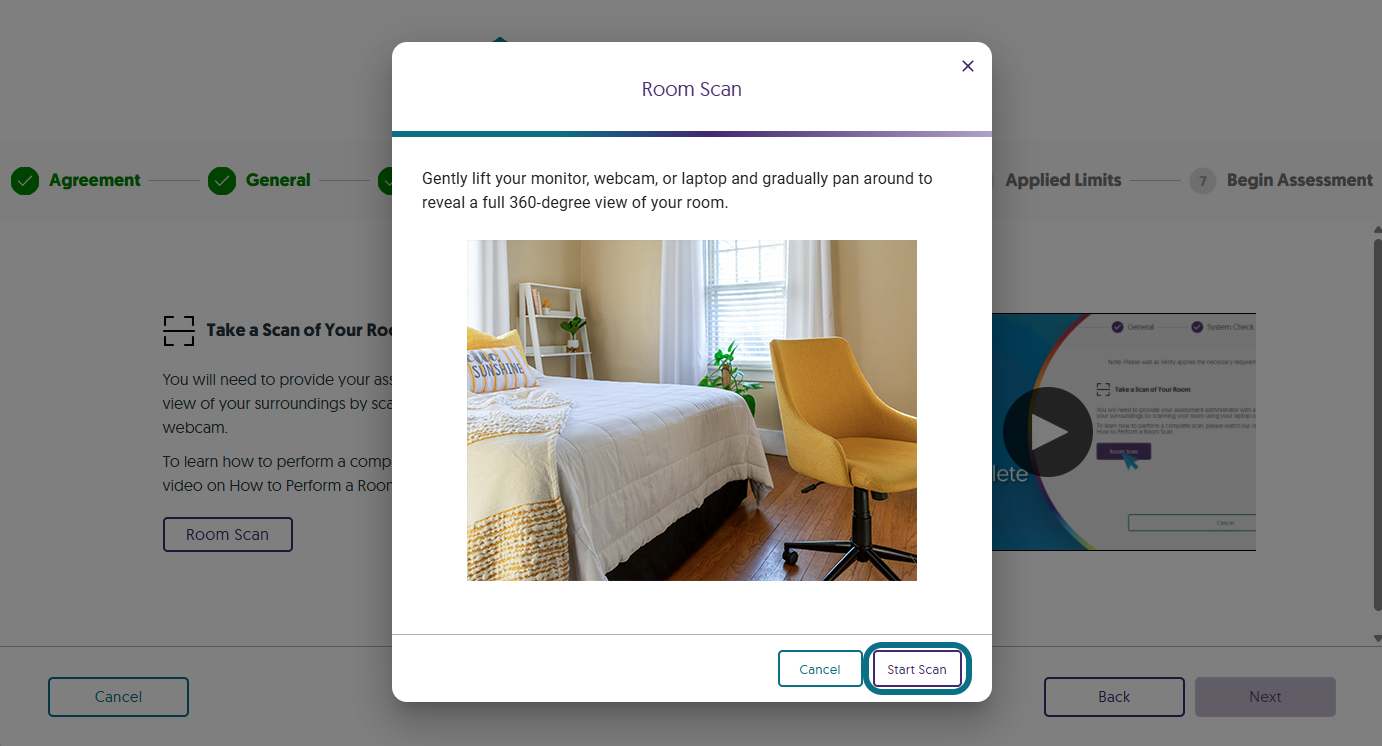
- Pan your webcam or laptop around to reveal a full 360-degree view of your room.
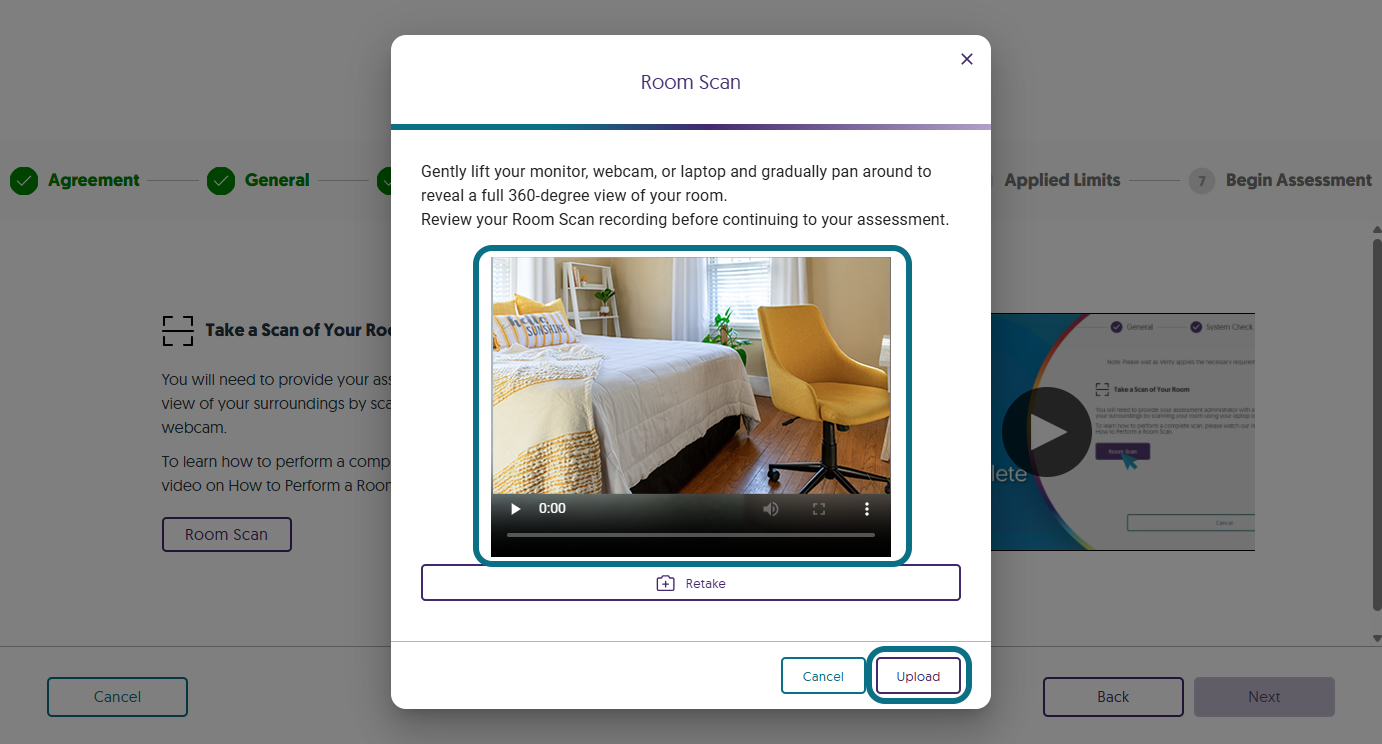
- After completing the scan, click End Scan.
- Review your Room Scan video to check if it meets the scanning requirements. Then, click Upload to upload your room scan.
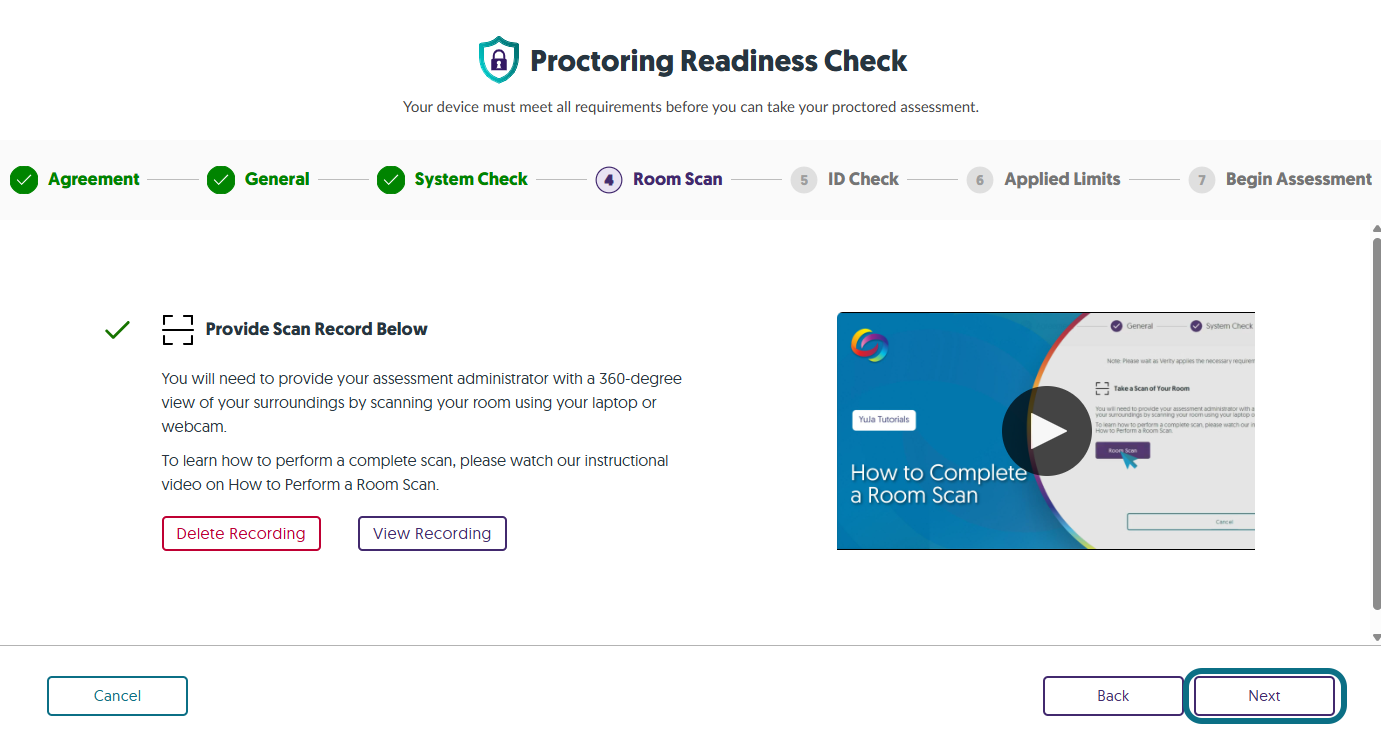
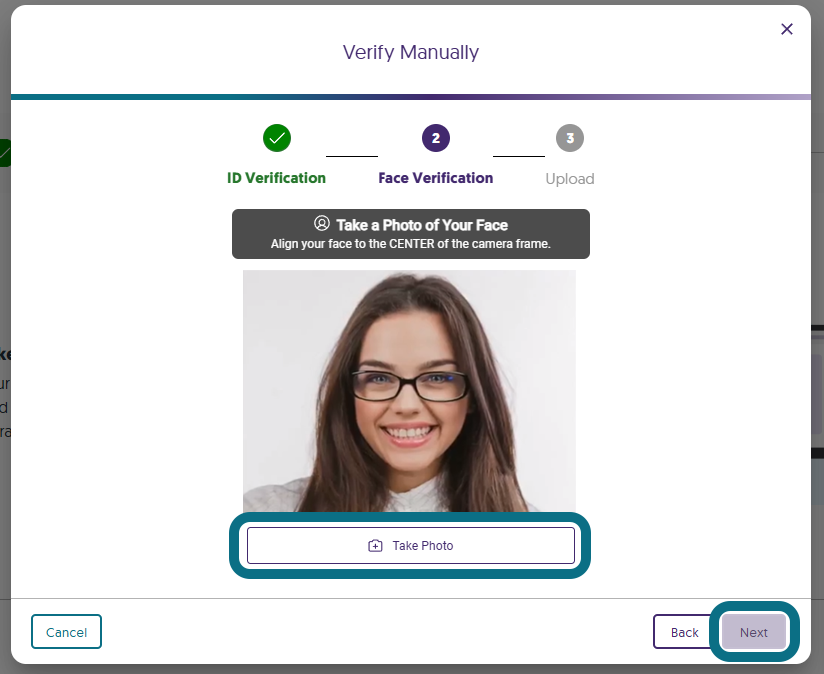
8. If an ID Check is required, hold your institution or government-issued ID card up to the webcam, click 'Take Photo', and then click 'Next'.
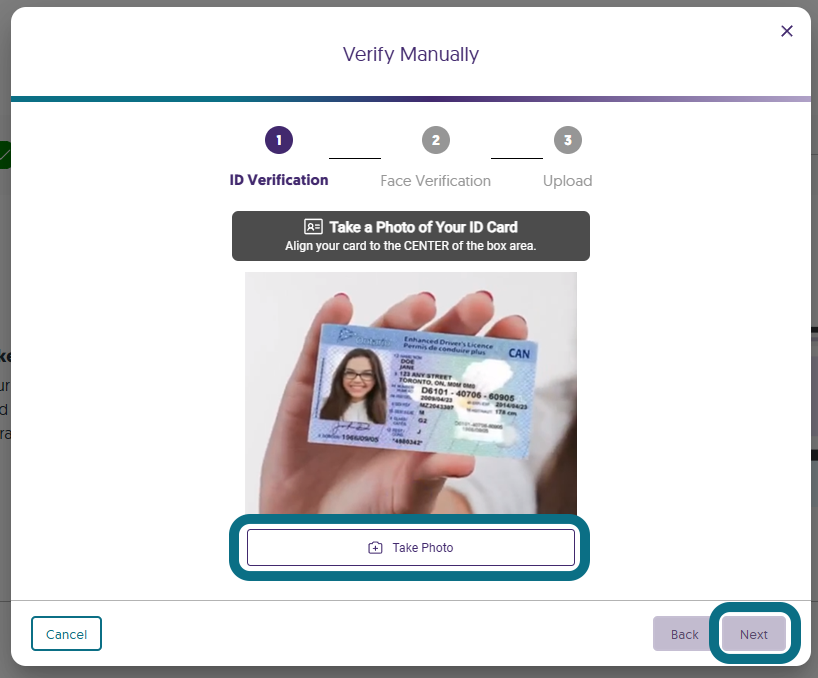
- To complete the face verification, position your face in front of the webcam, click Take Photo, and then click Next.
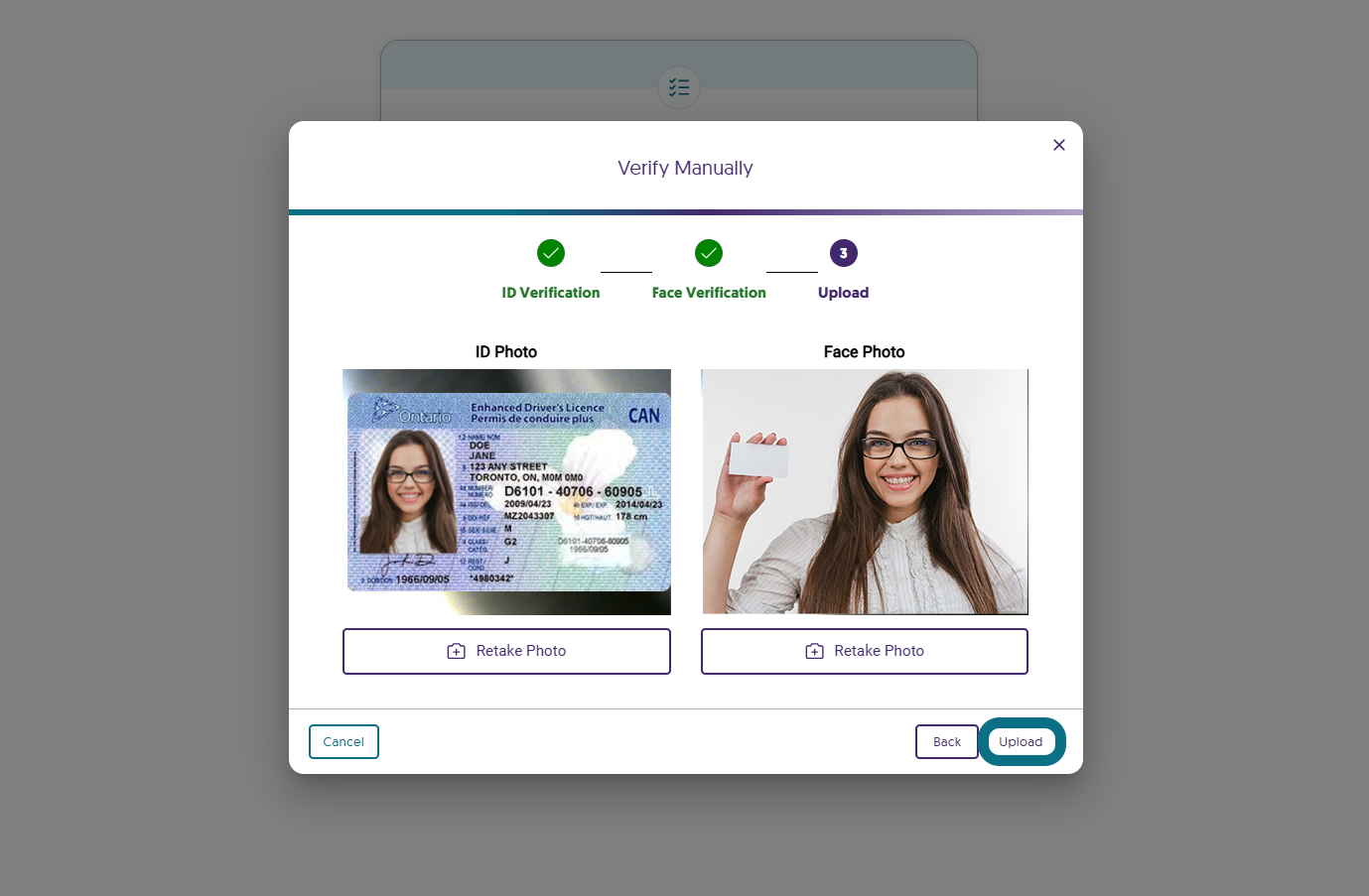
- Once you are satisfied with your photos, click Upload.
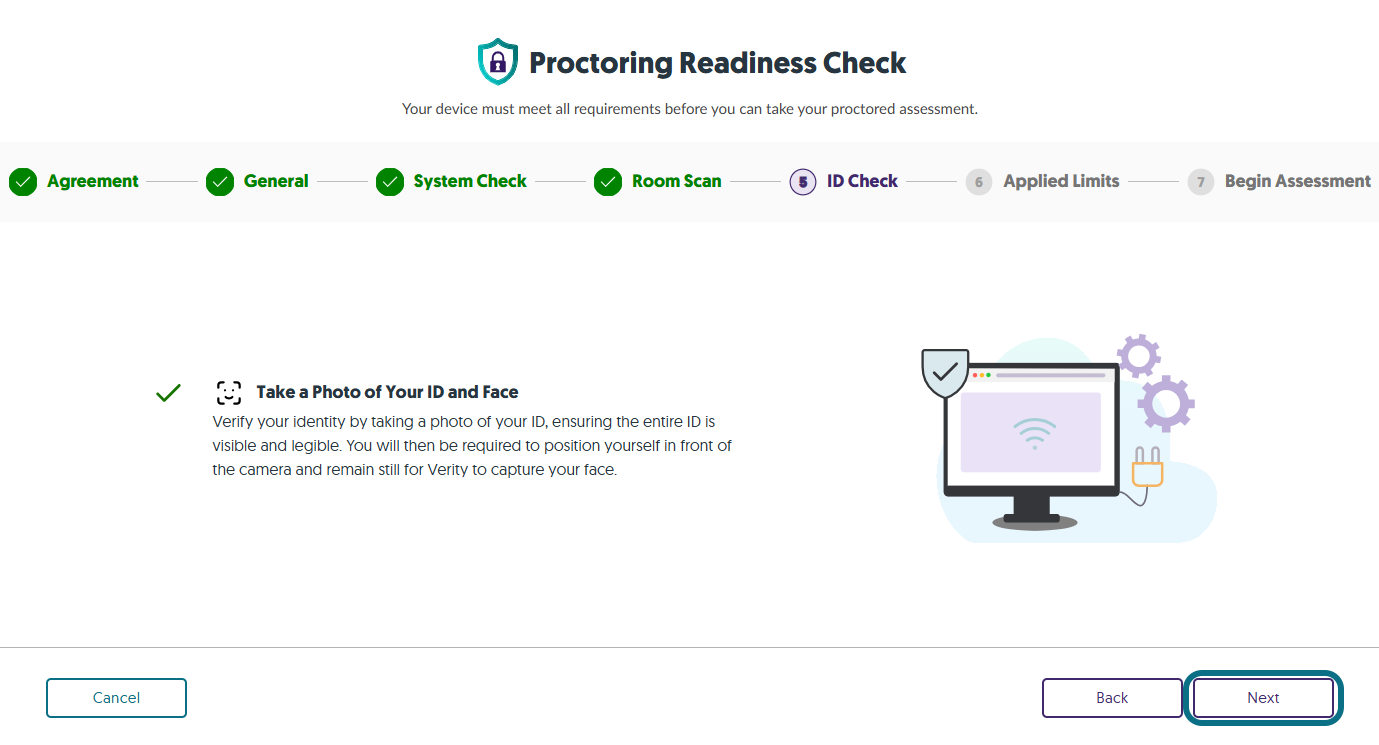
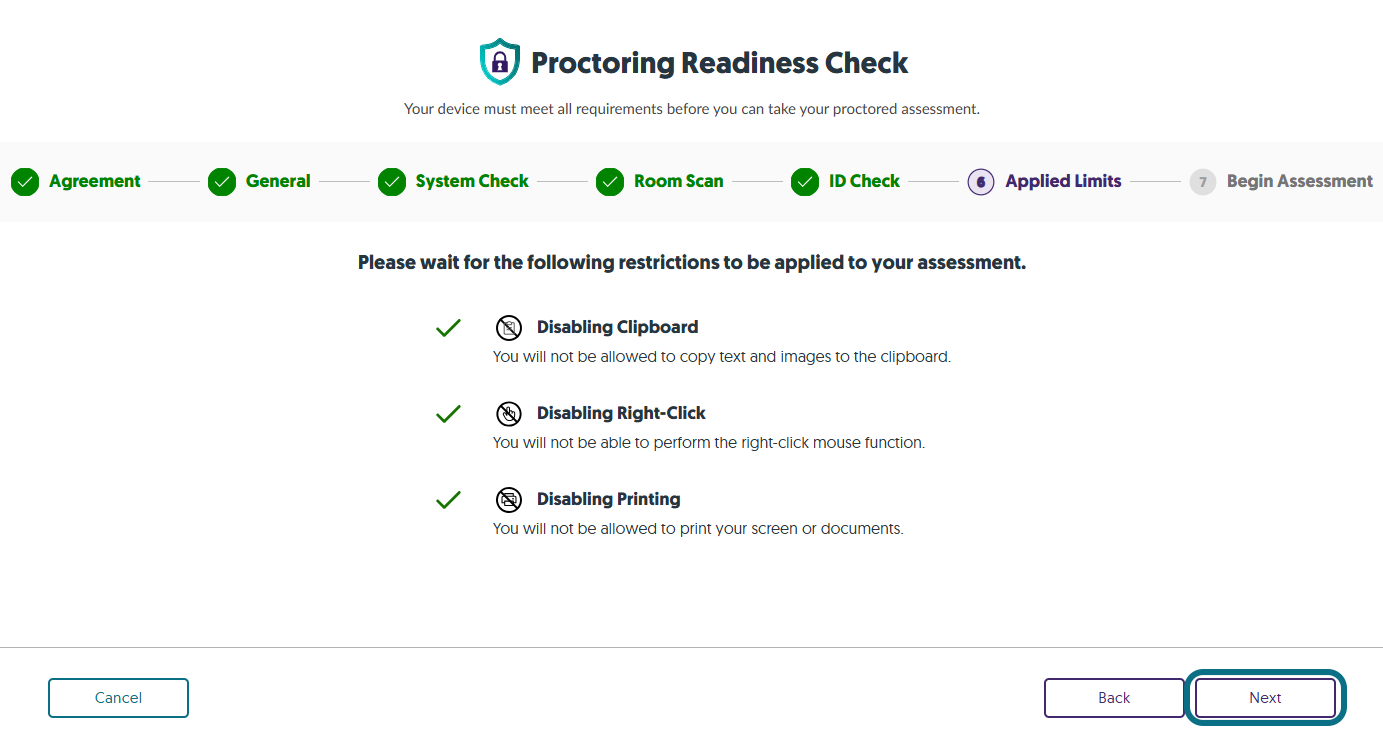
9. Certain limits will be applied to your proctored assessment. After resolving any outstanding requirements, click Next.
10. Click Start Assessment to begin your proctored assessment.